> ## Documentation Index
> Fetch the complete documentation index at: https://docs.duckpost.app/llms.txt
> Use this file to discover all available pages before exploring further.
# Create and publish releases
> Write, preview, schedule, and publish release notes in DuckPost.
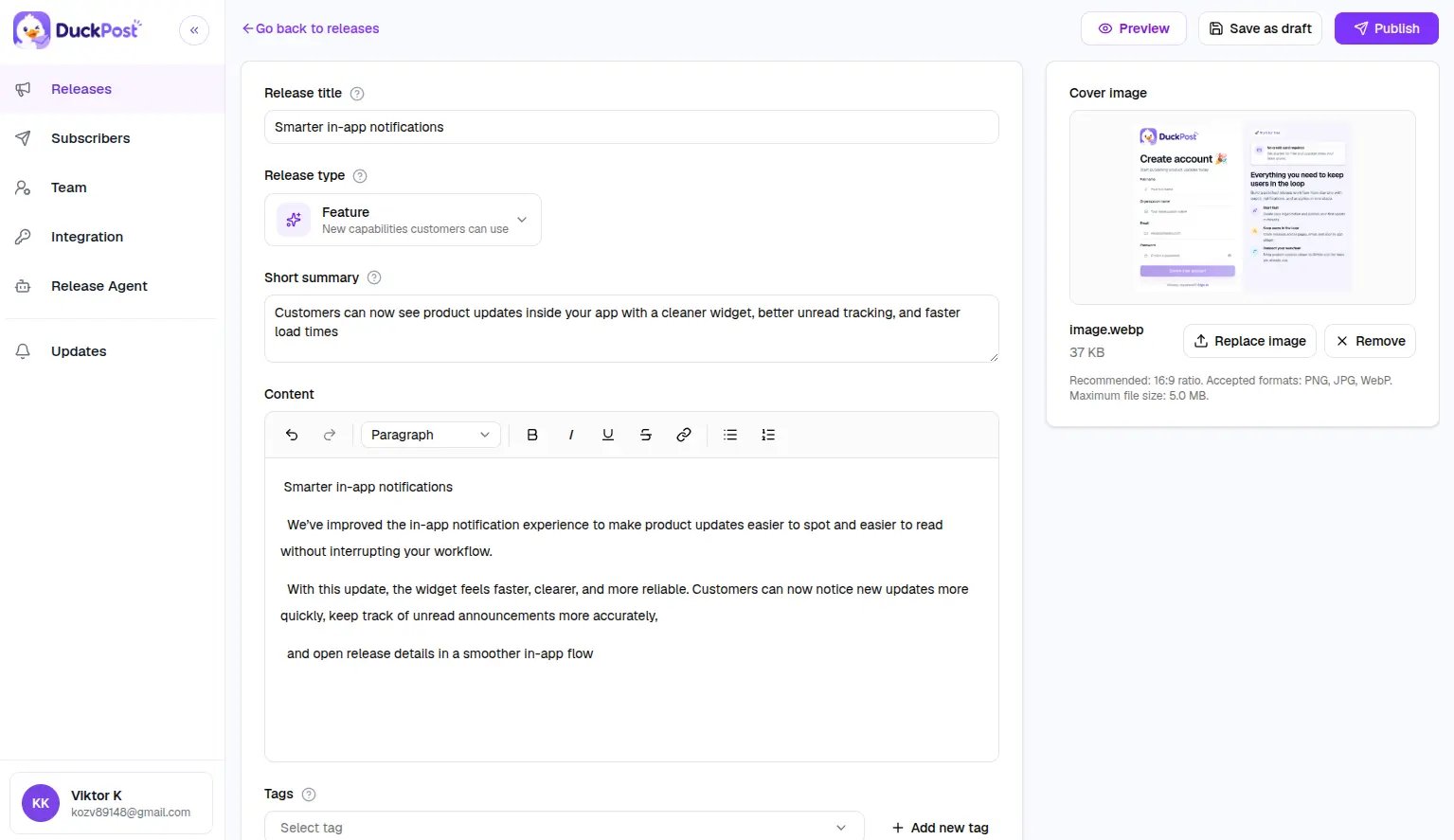
DuckPost uses one editor flow for new releases and edits. Start from [**Releases**](https://duckpost.app/releases), then click [**New release**](https://duckpost.app/releases/new).
## What the editor includes
| Field | Required | Notes |
| ----------------- | -------- | ------------------------------------------ |
| Title | Yes | 3 to 100 characters |
| Summary | Yes | 10 to 240 characters |
| Rich text content | Yes | Must contain visible text |
| Release type | Yes | Pick the type that best matches the update |
| Cover image | No | `PNG`, `JPG`, or `WebP`, up to `5 MB` |
| Tags | No | Reuse existing tags or create new ones |
## Release types
Use release types to help customers scan your changelog faster:
* `PRODUCT_UPDATE` for general improvements
* `PERFORMANCE` for speed or reliability gains
* `FEATURE` for new customer-facing capabilities
* `BUG` for fixes
* `SECURITY_UPDATE` for security-related work
## Publish workflow
Add the customer-facing title, summary, details, tags, and release type.
Use the editor preview tools to check the public page and widget presentation before you ship.
Save as **Draft**, publish immediately, or schedule the release for later.
Turn subscriber notifications on if confirmed email subscribers and Slack channels should receive the release when it goes live.
## Subscriber notifications
When a release goes live, DuckPost can notify:
* Confirmed email subscribers
* Connected Slack channels
If there are no subscribers, DuckPost still publishes the release. It only skips the outbound delivery.
## Preview surfaces
The editor includes previews so you can review:
* The public changelog layout
* The widget layout
* Desktop and mobile presentation
Use preview before publishing if your release includes a cover image, longer content, or multiple tags.
## Editing published releases
You can reopen an existing release and update it. Be careful when changing public headlines and summaries after publication because customers may already have seen or shared the original version.
Scheduled releases publish automatically at the selected time. Make sure your DuckPost deployment keeps scheduled publishing enabled and healthy.