> ## Documentation Index
> Fetch the complete documentation index at: https://docs.duckpost.app/llms.txt
> Use this file to discover all available pages before exploring further.
# Dashboard overview and next steps
> Learn the main DuckPost workspace, publish your first release, and configure what comes next.
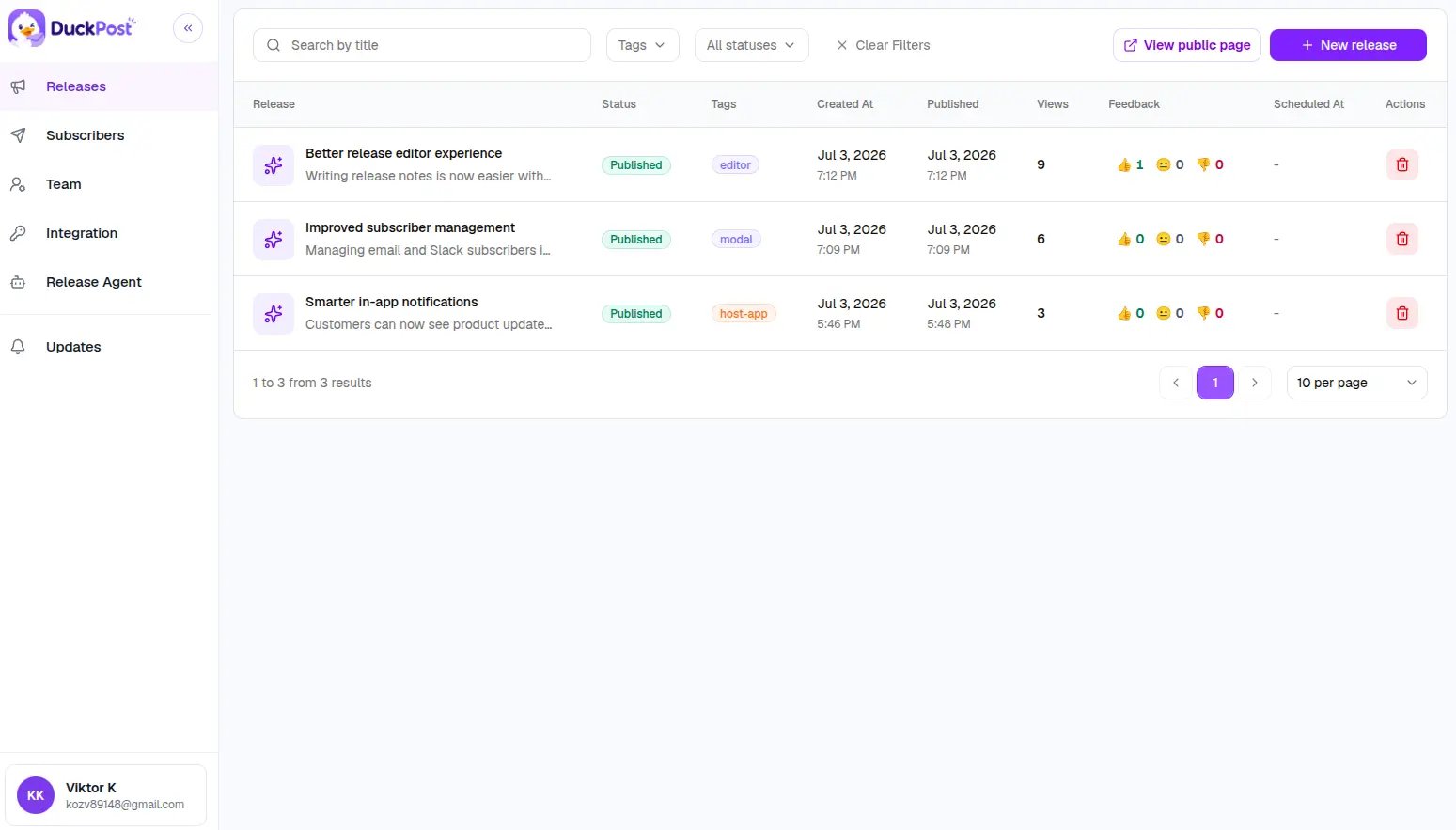
After you sign in, DuckPost opens to [**Releases**](https://duckpost.app/releases). That page acts as your main workspace, so you can start shipping updates immediately.
## Dashboard overview
Use the left navigation to move between the main product areas:
| Page | What you do there |
| --------------------------------------------------------- | -------------------------------------------------------------------------------------------- |
| [Releases](https://duckpost.app/releases) | Create, edit, schedule, publish, and review release performance. |
| [Subscribers](https://duckpost.app/subscribers) | Manage email and Slack audiences for release notifications. |
| [Team](https://duckpost.app/team) | Invite teammates, revoke invites, and manage member access. |
| [Integration](https://duckpost.app/integration) | Copy the widget snippet, change your public changelog slug, and manage the widget allowlist. |
| [Release Agent](https://duckpost.app/release-agent) | Connect GitHub, manage the action key, and review automation jobs. |
| [Profile settings](https://duckpost.app/settings/profile) | Update your name, password, organization name, and MFA settings. |
## Publish your first release
Open [duckpost.app/releases](https://duckpost.app/releases) and click **New release**.
Add:
* A title between 3 and 100 characters
* A summary between 10 and 240 characters
* Rich text content
* An optional cover image in `PNG`, `JPG`, or `WebP` up to `5 MB`
* Optional tags and a release type
Save it as **Draft**, publish it now, or schedule it for later.
Turn on subscriber notifications if you want DuckPost to send the release to confirmed email subscribers and connected Slack channels when it goes live.
Use the preview tools in the editor to check how the release will look on the public page and in the widget.
## What happens after you publish
After your first published release is live, you can:
* Open [**Integration**](https://duckpost.app/integration) and copy your public changelog URL
* Install the widget snippet in your app
* Invite customers to subscribe by email or Slack from the public page
* Return to [**Releases**](https://duckpost.app/releases) to review views and reactions
```html theme={null}
```
Replace `` with the organization ID shown in **Integration**.
## Next steps
* 🚀 Read [what is DuckPost](/get-started/what-is-duckpost) for the full product model
* 📝 Read [releases overview](/releases/overview) for statuses, types, tags, and analytics
* 🔌 Read [public page](/integrations/public-page) and [widget](/integrations/widget) to configure sharing
* 🔔 Read [subscribers](/audience/subscribers) to understand email and Slack delivery