> ## Documentation Index
> Fetch the complete documentation index at: https://docs.duckpost.app/llms.txt
> Use this file to discover all available pages before exploring further.
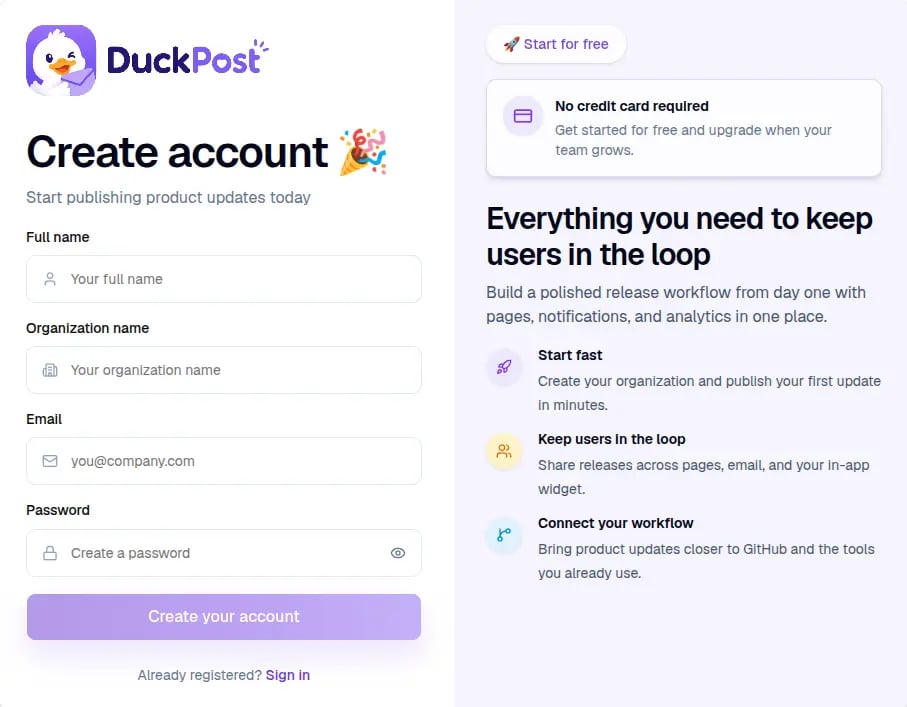
# Create account
> Create your DuckPost account, verify your email, and join or create an organization.
Create your account at [duckpost.app/register](https://duckpost.app/register). If you already have an account, sign in at [duckpost.app/login](https://duckpost.app/login).
## What happens after you submit
DuckPost creates your account and your first organization.
DuckPost sends a verification email. You must verify your address before you sign in.
After verification, open [duckpost.app/login](https://duckpost.app/login) and access your workspace.
## If you were invited by a teammate
Invite links open a slightly different registration flow. You only need to finish your personal account details. If an invite is invalid or expired, ask the organization owner for a new invite.
## After your account is ready
* Go to [dashboard overview, first release, and next steps](/quickstart)
* Open [Releases](https://duckpost.app/releases) to create your first update
* Open [Profile settings](https://duckpost.app/settings/profile) later to change your password or enable MFA